
Users and roles
The four roles
Section titled “The four roles”| Role | Reaches |
|---|---|
| Player | The player portal: their own profile, their own characters and game account links, their Teams, forum access, notification preferences |
| Moderator | Everything a player has, plus Moderation, Appeals, Reports and the Teams admin screen |
| Editor | Everything a player has, plus Posts, Pages, Wiki and the Activity log |
| Admin | All of it, including Users, Invites, Settings, Modules, Appearance, Navigation, Authentication and the module’s own admin screens |
Admin routes are re-validated against the database on every request, not just at sign-in. Demoting an account takes effect at once — the open session does not keep its access until it expires.
Creating an account
Section titled “Creating an account”Admin → Users → + Add user creates one directly: username, password, role, and it is active immediately. That is the right path for staff, and for the handful of accounts you create yourself.
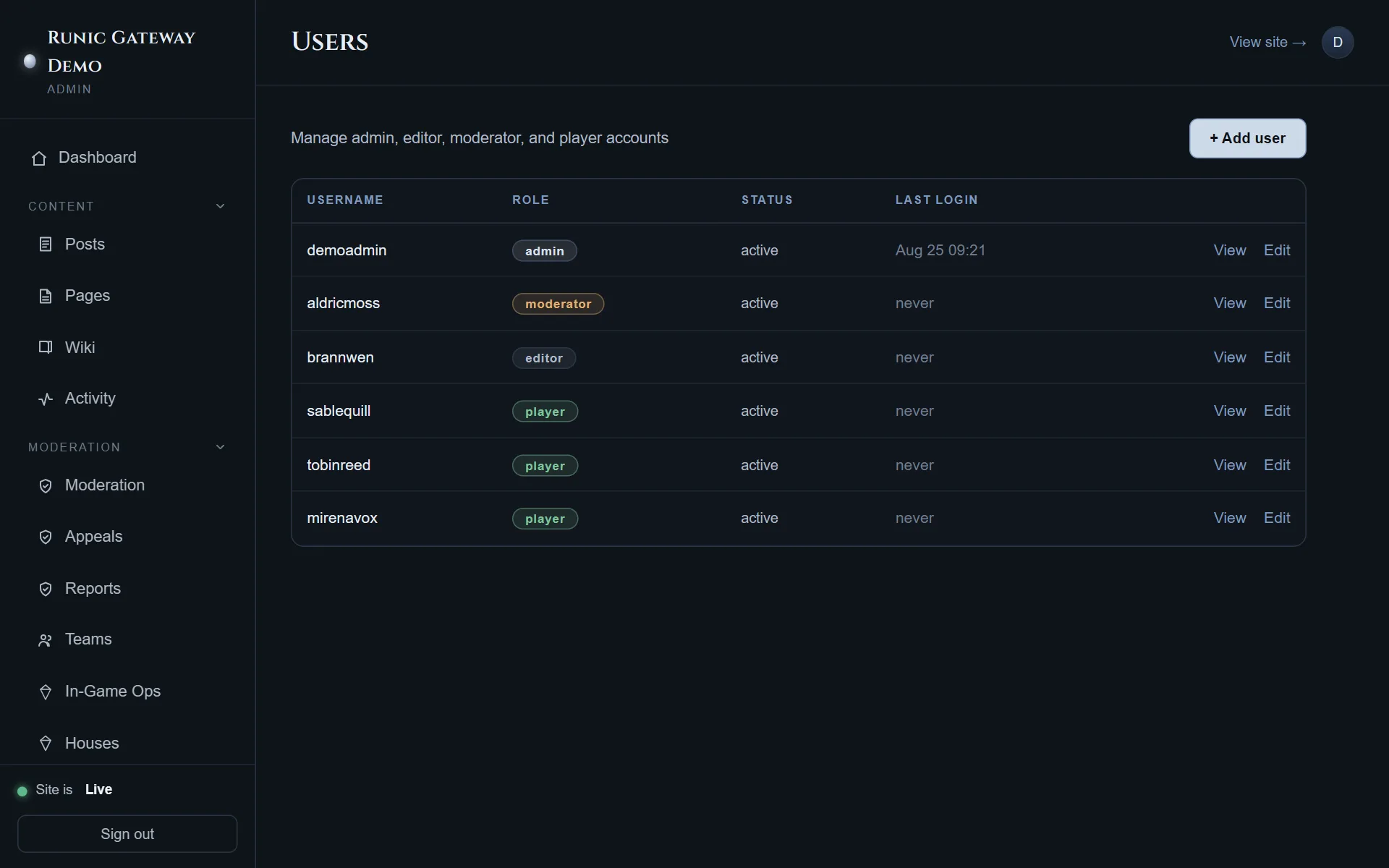
The list shows each account’s role, status and last login, with View and Edit on every row.
Invites
Section titled “Invites”Admin → Invites is the way to let a specific person in when self-registration is off — which is how every deployment starts.
Enter an email, pick the access level (player, moderator, editor or admin), and either create and email the invitation or generate a link to share yourself. The table tracks status, expiry and creation date, so an unaccepted invite is visible rather than forgotten.
This is worth preferring over creating accounts by hand for real people: the recipient sets their own password, and you never handle it.
Opening registration
Section titled “Opening registration”When you do want a public sign-up, that is Settings → Player registration: password, SSO, or both. See Configuration.
Before opening it, know what is protecting the door: rate limiting, login backoff, a honeypot, bot scoring and automatic IP bans — all covered in Authentication, along with two-factor and the SSO policy that an external identity can only ever sign in to an account it is already linked to.
Status, and why deleting is the last resort
Section titled “Status, and why deleting is the last resort”Editing an account sets its status as well as its role: active, disabled, banned or pending. Disabled and banned both stop the account being used; the difference is what you are recording — an account switched off versus an account sanctioned.
Prefer either to the Delete button. Content, moderation history and Team membership all reference the account, and a disabled one keeps those records readable while a deleted one leaves the history to explain itself.