
First run
The site is up and nobody can see it yet. That is the intended state: a new deployment starts in maintenance mode, showing visitors a “coming soon” page while the admin panel stays reachable.
Sign in
Section titled “Sign in”-
Open
/admin/login— not/. The public site and the admin panel have separate sign-in screens, and in maintenance mode the public one is behind the coming-soon page. -
Use
ADMIN_USERNAMEandADMIN_PASSWORDfrom your.env.That account was created on the first boot, and only because the
userstable was empty. The variables do nothing on later boots, so you can blank them once you are in. -
Set up two-factor, under Account at the bottom of the sidebar. Optional, per-account, and the right moment is now rather than after the site is public.
What is already there
Section titled “What is already there”The first boot seeds a working site rather than an empty one:
- A wiki with eight pages, arranged in sections — Guides, World & Lore, Systems & Gameplay, Community & Rules — as a skeleton to write into, not as content to keep.
- Post categories: News, Five on Friday, Newsletter, Screenshots.
- A public navigation covering those, the wiki and an About page.
- A portal hero with placeholder copy that names no game.
None of it mentions a specific game, because core does not know about one. That arrives with a module.
The three things to set before going live
Section titled “The three things to set before going live”All three are on Settings:
| Setting | Why now |
|---|---|
| Site title | Overrides BRAND_NAME for the page title, the header and link previews. |
| Contact email | Where the contact form delivers. Until email is configured, the form falls back to a mailto: link to this address — so an unset one means a contact form that goes nowhere. |
| Player registration | Off by default: nobody can create an account. Choose password, SSO, both, or leave it off and invite people individually from Invites. |
The maintenance message and the homepage teaser are on the same screen, and both are worth a minute before anyone reads them.
Switch to live
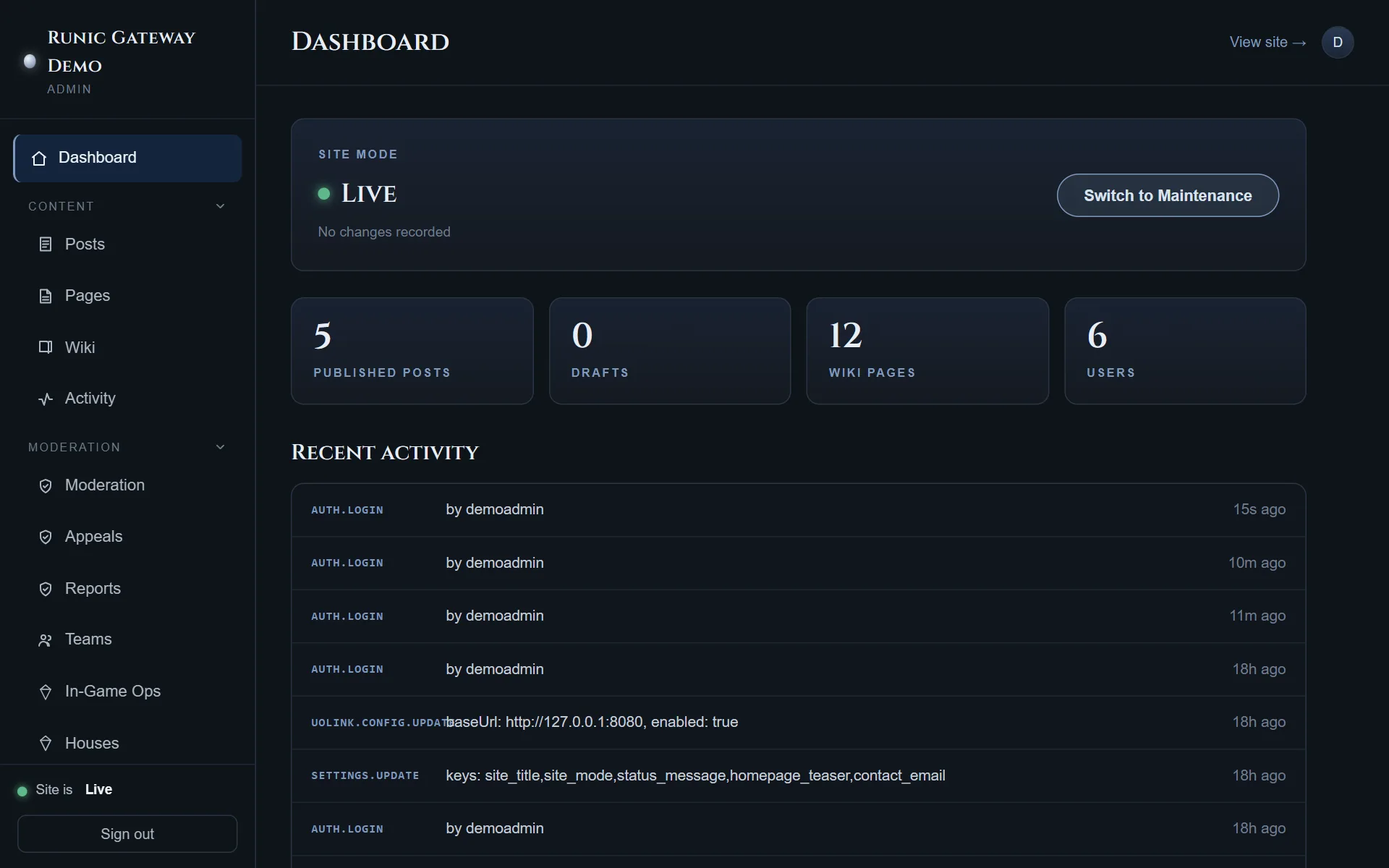
Section titled “Switch to live”Dashboard → Switch to Live. The public site opens immediately; nothing else changes.
You can flip back at any time, and an admin who is signed in can preview the live site while the rest of the world still sees the maintenance page — so there is no need to go live in order to check your work.
Next: Install a game module, or skip straight to Administration if this deployment is a community site with no game server behind it.